⇧⌘4, but for video.
Record a region of your screen. Save it as MP4, HEVC or GIF. Nothing else.
Three gestures. No settings.
-
⌥ ⇧ ⌘ 4 and drag
Like a screenshot. Space moves the region, ⇧ locks an axis, ⌥ grows it from the centre.
-
Record on release
No countdown, no control bar. Stop with the same shortcut or from the menu bar.
-
Choose afterwards
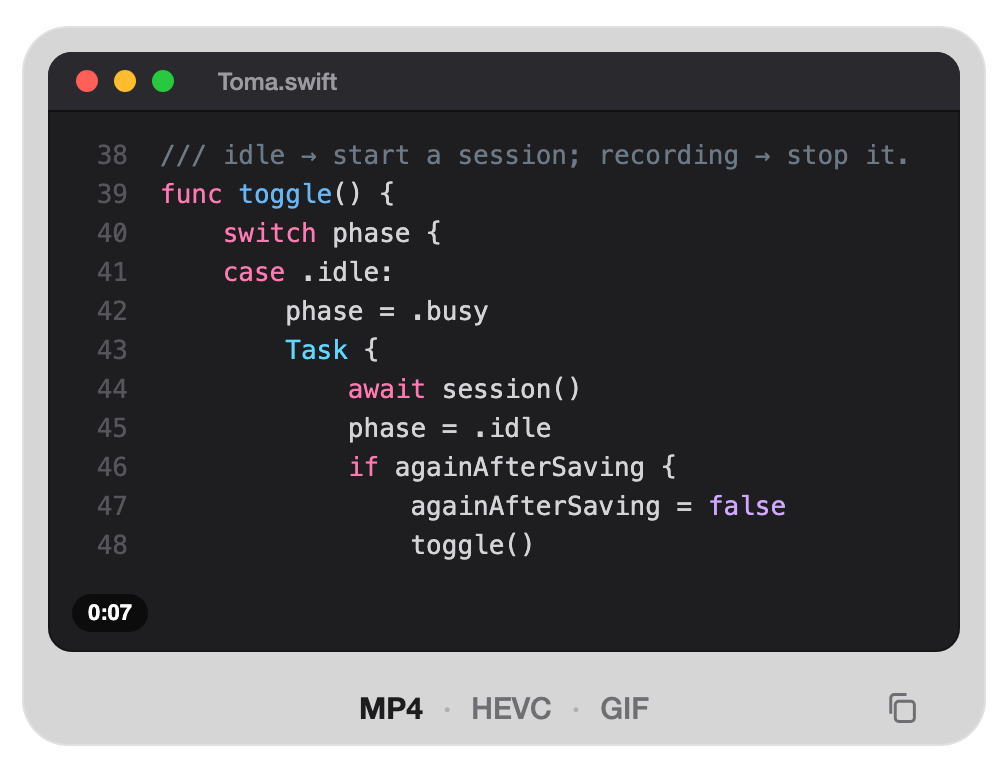
A thumbnail shows the clip on a loop. MP4, HEVC or GIF. If you do nothing, it saves.
Decide when you see it.
Pick the format after recording, not before. Drag the thumbnail into Slack or Mail, copy it to the clipboard, or let it go: Toma remembers your last format.
Light, for real.
Toma re-encodes each clip for quality, not size: text stays sharp and a still screen weighs almost nothing. The GIF only keeps what changes.
| Original | 2.5 MB | |
| MP4 | 0.46 MB | |
| HEVC | 0.25 MB |
Just enough, in the menu bar.
No settings window. Three options, and each one shows its value.
Record what matters.
First time: drag Toma to Applications and open it. It isn’t notarized yet, so go to System Settings › Privacy & Security and click «Open Anyway». Then grant Screen Recording permission.